How to Switch Genealogy Software Without Losing Your Data
Moving your family tree to new genealogy software is safer than it sounds. Here's the three-step migration that keeps your research — and what GEDCOM leaves behind.
You've outgrown the software you started with. Maybe it got expensive, maybe it got sold, maybe you just want something more private. But you've got hundreds of people in that tree — and the thought of moving them makes you want to stay put.
Here's the thing that changes the math: you are never actually locked in. Genealogy has a shared language, and every serious tool speaks it. Switching isn't rebuilding — it's copying a file from one place to another.
Here's how the move actually works, and the one part that needs your attention.
GEDCOM Is Why You Can Leave #
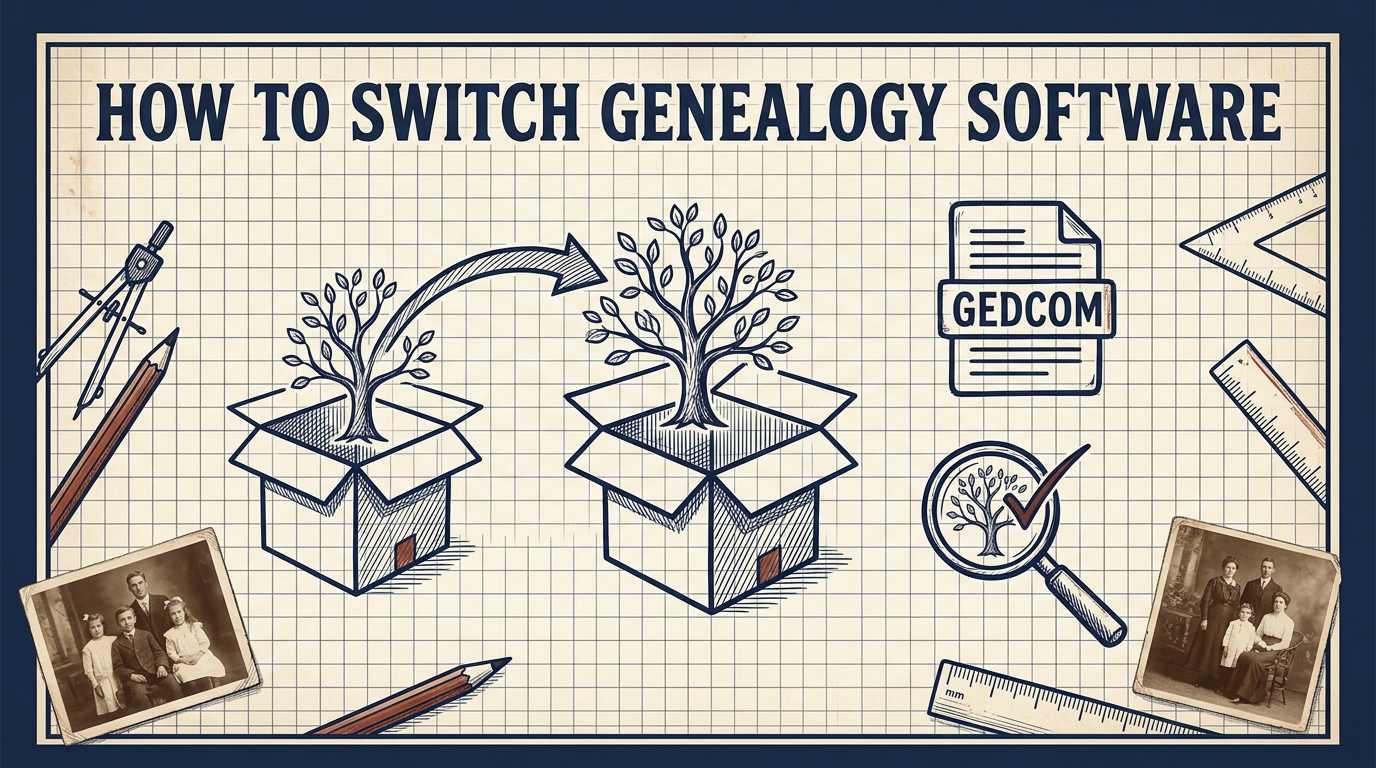
Almost every family tree program can read and write GEDCOM — a plain-text format that's been the common standard since the 1980s. That's the whole reason migration is possible. Your old software exports a GEDCOM; your new software imports it; your tree comes across.
Because it's an open format, no single company owns the exit. If a platform can't export to GEDCOM, or can't import one, treat that as a warning sign before you commit — you'd be walking into a room with no door out.
So the move is really just three steps.
The Three-Step Move #
1. Export your current tree as a GEDCOM.
Every tool puts this in a slightly different menu, but it's always there. On Ancestry it lives under Tree Settings → Export tree; we walked through the exact clicks in How to Export Your Family Tree From Ancestry. On desktop programs it's usually File → Export → GEDCOM. You'll get a .ged file — that's your research in a portable box.
2. Check what's coming with you — and what isn't.
This is the step people skip, and it's the one that bites.
A GEDCOM carries the facts and structure of your tree: names, dates, places, relationships, notes, and source citations. What it does not carry is your media — the scanned birth certificates, the old photographs, the document images you uploaded over the years. It also tends to leave behind platform-specific extras: record hints, DNA match links, and any styling or formatting unique to the old app.
So before you cancel anything, do the second export by hand: download your photos and document scans separately. Save them alongside the GEDCOM, ideally with filenames that say what they are. Miss this and you'll import a perfect skeleton with none of the pictures.
3. Import into the new software and verify.
Point the new platform at your .ged file and let it load. Then — before you trust it — actually look. Open the tree and spot-check a few branches: are the dates right, did the sources come across, is anyone missing? A GEDCOM viewer is handy here too, letting you inspect the file itself before or after the import so you know exactly what moved.
Keep the old account alive until you've confirmed the new one is complete. There's no rush to burn the bridge.
What to Look for in the New Platform #
Since you're choosing anyway, choose deliberately. The questions worth asking:
- Can it import GEDCOM? Non-negotiable, or your research doesn't move.
- Can it export GEDCOM too? Just as important. If you can get in but not back out, you've only swapped one lock-in for another. Data you can't take with you isn't really yours.
- Who owns the data — you or the platform? Look for a clear answer, not fine print.
- Is it encrypted and private by default? Your tree holds living relatives' names, birthdates, and locations. That deserves a platform that treats it as sensitive, not as material for a public discovery network.
That last point is where a lot of the mainstream options quietly differ from each other, and it's worth weighing against how you plan to preserve everything long-term — the same principles behind building a digital family archive that actually lasts apply to picking where the tree lives day to day.
Move Once, Then Never Be Stuck Again #
The irony of migration anxiety is that the fix is the same habit that makes it painless: keep a current GEDCOM and your media saved outside any single platform. Do that, and switching software stops being a leap of faith. It's a file transfer.
That portability is exactly what famstory is built for — a private, end-to-end encrypted home for your family tree that imports your GEDCOM and lets you export it again any time. No lock-in, no social sharing. You can create your family tree online from the file you already have, and if it's ever not for you, you take everything and go.
FAQ #
Will I lose my family tree if I switch genealogy software? #
No — as long as your new software imports GEDCOM. Export your current tree as a GEDCOM, import it into the new tool, and your names, dates, places, and sources come across intact.
What does GEDCOM not transfer when I migrate? #
Photos, document scans, record hints, and DNA match links. GEDCOM is text only. Download your media separately by hand before you leave the old platform.
How do I know the import worked correctly? #
Open the tree in the new software and spot-check several branches, or inspect the GEDCOM in a viewer first. Keep your old account active until you've confirmed everything transferred.